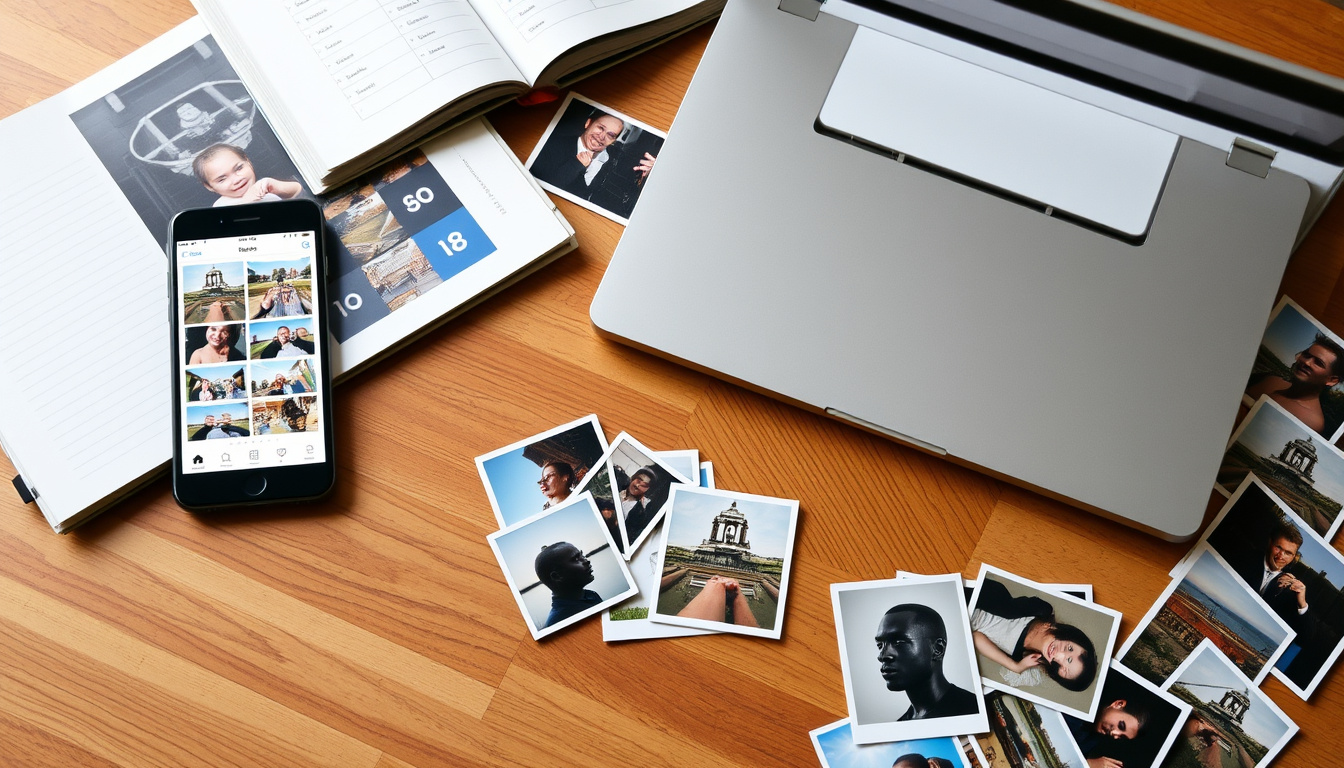
Anyone who has stared at a camera roll of 12,000 photos knows the mix of nostalgia and dread. That screenshot from 2018, the blurry sunset, the seven nearly identical shots of your cat — they pile up fast.
Average large collection size mentioned by users: 12,000+ photos (Reddit community data) · Common time span for backlog: 30 years of accumulated photos · Number of free photo organizer apps available: More than 20 apps with free tiers
Quick snapshot
Start with a Backup
- Create at least two copies before reorganizing from Backblaze blog (data storage experts)
- Use both cloud and local storage as recommended by Backblaze (backup service provider)
Sort Chronologically
- Folder structure: Year > Month > Event recommended by Wired (tech publications)
- Use file names with date and description from The Digital Press (photography education site)
Leverage AI Tools
- Google Photos: automatic face/object recognition per Google Blog (company blog)
- Apple Photos: smart albums
Delete Ruthlessly
- Remove duplicates, blurry, and irrelevant photos
- Aim for a curated collection
| Metric | Value |
|---|---|
| Average digital photo collection | Over 2,000 photos per smartphone user |
| Most common storage method | Cloud (Google Photos, iCloud) |
| Time to organize 10,000 photos | 20-40 hours (based on user reports) |
| Free storage limits | Google Photos: 15 GB (Shared across accounts) |
What is the best way to organize thousands of photos?
Categorize by date and event
- Date-based folders are the most scalable method, according to Wired (tech publications).
- Structure like
YYYY/YYYY-MM-DD_EventNameworks across platforms.
Start with a full backup before you touch any folder. Copy everything to an external drive and a cloud service — that safety net lets you experiment.
Use a consistent naming convention
Name your top-level folders by year, then by month or event. A Google Photos tutorial on The Digital Press (photography education site) recommends using a year plus a short description for albums — the same logic applies to desktop folders.
Leverage photo management software
Adobe Lightroom offers advanced tagging and editing, while Google Photos handles AI-based grouping automatically. In November 2023, Google (company blog) introduced photo stacks that group similar shots and automatically sort screenshots into dedicated albums. For offline-only users, Tom’s Guide (consumer tech reviews) recommends XnViewMP, a fast browser supporting more than 500 image formats.
The pattern: AI does the heavy lifting for time-pressed users, while manual folder discipline gives you full control. Choose based on how much curation you enjoy.
How do I organize my 30 years of photos?
Digitize physical prints first
- Prioritize scanning from oldest to newest — those fading prints are most at risk.
- Use archival-quality storage for physical originals after scanning.
For large batches, scanning services like ScanCafe can handle thousands of prints at reasonable rates. Keep the originals in acid-free boxes.
Sort by decade, then year, then event
Once everything is digital, apply the same chronological folder structure. Start broad: 1990s → 1995 → 1995-07_Vacation. This prevents decision paralysis and makes searching intuitive.
Cloud storage with redundancy prevents loss
Store your digitized collection in at least two places. Google Store Magazine (brand resource) notes that Google Photos is suitable for “hundreds or thousands of old photos dating back decades” — but free storage is capped at 15 GB, so plan for expansion.
Organizing 30 years of photos isn’t a weekend project. One Reddit user in r/DataHoarder reported setting aside 20–40 hours for 10,000 images. Break it into decade-sized chunks and tackle one a month.
Is there an app I can use to organize my photos easily?
Four apps, one pattern: free tiers cover basics, paid plans unlock power features.
| App | Free tier limit | Key feature | Platform |
|---|---|---|---|
| Google Photos | 15 GB shared | AI stacks, face grouping | Web, iOS, Android |
| Apple Photos | 5 GB iCloud | Smart albums, deep OS integration | macOS, iOS |
| Adobe Lightroom | 1 GB (trial then subscription) | Advanced raw editing, keyword tagging | Desktop, mobile |
| Mylio | None (free sync only) | Local-only sync without cloud dependency | Desktop, mobile |
Google (company store magazine) says its Photos search can find images by names, dates, people, and locations without manual tagging. For power users, Lightroom remains the recommendation from photographer blogs (NL Alor Photography).
The catch: free tiers are generous but not forever. Google’s 15 GB is shared across Drive, Gmail, and Photos, so a heavy user hits the ceiling fast.
What is the best free photo organizer?
Google Photos
The most popular free option. It automatically organizes similar photos into stacks (Google Help (official support)) and can hide clutter in the Photos view.
Apple Photos
Integrates seamlessly with iOS/macOS. Smart albums let you create dynamic collections based on criteria like “people” or “date range.”
DigiKam (open-source)
Offers offline organization without ads or cloud dependency. It’s free and respects your privacy, but the learning curve is steeper.
Upsides
- Simple date-based folders work on any OS
- AI tools (Google Photos, Apple Photos) speed up sorting
- Free apps eliminate upfront cost
Downsides
- Free cloud storage fills up quickly (15 GB shared)
- Manual folder discipline requires initial time investment
- No single app is best for every collection size
What this means: if you’re already in Apple’s ecosystem, Apple Photos is zero-friction. For cross-platform households, Google Photos wins. DigiKam is for the privacy-minded who don’t mind manual setup.
Free photo organizer apps change their terms more often than users reorganize their albums. Google’s unlimited “high quality” storage ended in June 2021. Don’t build a 50,000-photo library on a free tier without a backup plan.
How to organize photos on phone?
Use built-in albums and folders
Both Google Photos and Apple Photos let you create albums directly. The Digital Press tutorial suggests naming albums with a year plus description for quick scanning.
Enable automatic backup to cloud
Turn on auto-backup in Google Photos or iCloud to ensure you never lose a shot. Google (store magazine) says this is the fastest way to get all photos into one searchable library.
Regularly delete duplicates and blurry shots
Third-party apps like Slidebox help quickly sort. Aim to delete at least 20% of low-quality photos annually to keep your library lean.
The trade-off: automatic backup fills your cloud quota fast. Set a monthly reminder to cull junk before you hit the limit.
What is the best way to store digital photos long term?
Use a 3-2-1 backup strategy
- Three copies of your photo library
- Two different media (e.g., external HDD + cloud)
- One copy off-site (cloud or a drive at a relative’s house)
Choose reliable cloud providers
Cloud services like Backblaze (cloud backup provider) and Amazon Photos offer affordable long-term plans — unlimited photo storage with a Prime membership, for example.
Consider external hard drives and NAS
A Network Attached Storage (NAS) device keeps your photos accessible on your home network without a monthly fee. Avoid relying solely on free tiers, as Google Help Community (user forum) discussions show that terms can change without notice.
“I have about 12,000 photos and videos — mostly family stuff — and I just need a system that doesn’t feel like a part-time job.”
– Reddit user on r/DataHoarder (community discussion)
“Lightroom is the best tool for managing a large library because of its keywording and metadata capabilities.”
– Photographer blog, NL Alor Photography (photography portfolio site)
For Mac users struggling with duplicate images, pair this workflow with How to SS on Mac: The Complete Screenshot Guide (2025) to keep screenshots out of your main library. And if your Mac feels sluggish after organizing thousands of photos, The Best Free Mac Cleaners for 2026: Tested & Compared can help reclaim space.
For the average household juggling two phones, a camera, and 30 years of prints, the choice is clear: pick one cloud service (Google Photos or iCloud) for daily syncing, complement it with a $60 external drive for a local backup, and spend one Saturday a year deleting the bad shots. Anything less invites the paralysis of a 30,000-photo mess. Anything more is overkill until you hit professional territory. The implication: you must commit to a system now — waiting only makes the problem deeper.
snapfiles.com, gizmodo.com, play.google.com, wikihow.com, reddit.com
Frequently asked questions
How often should I back up my photos?
Set your phone to auto-backup daily. For your main computer library, a weekly backup to an external drive and a monthly cloud sync is a safe rhythm.
Is it safe to delete photos after backing up?
Yes, as long as you have two verified copies (one local, one off-site). Test that you can open a file from the backup before deleting originals.
What file format is best for long-term photo storage?
Lossless formats like TIFF or DNG preserve the most detail. JPEGs are fine for everyday photos, but don’t convert raw files to JPEG and then delete the originals — you lose future editing flexibility.
Can I organize photos from multiple devices in one place?
Yes, using Google Photos (iOS, Android, web) or Mylio (syncs across devices without cloud dependency). Both aggregate photos from phones, cameras, and computers.
How do I prevent duplicate photos?
Use automatic stack features in Google Photos or a duplicate finder app (e.g., Duplicate Cleaner for Windows, Gemini 2 for Mac). Also, stop syncing the same photo folder to multiple cloud services.
Should I keep raw files or just JPEGs?
Keep raw files if you edit photos; they contain all sensor data. For point-and-shoot memories, JPEG is fine. A hybrid approach: store raws on a local drive and export JPEGs to the cloud for everyday access.
What is the best way to organize photos for printing?
Create an album named “Prints” in your photo app. Mark favorites with a star or pick rating. Services like Shutterfly or Mpix sync directly with Google Photos and Apple Photos.
How do I share organized photo albums with family?
Google Photos and Apple Photos both generate shareable links. For a private family archive, try a shared iCloud album or a Mylio share library — recipients get access without needing an account.